 COME
COMEA Short COME Interface Tour After Installation
After the app opens, learn the main categories and the account menu before changing settings or following promotional panels.
Start with the category row
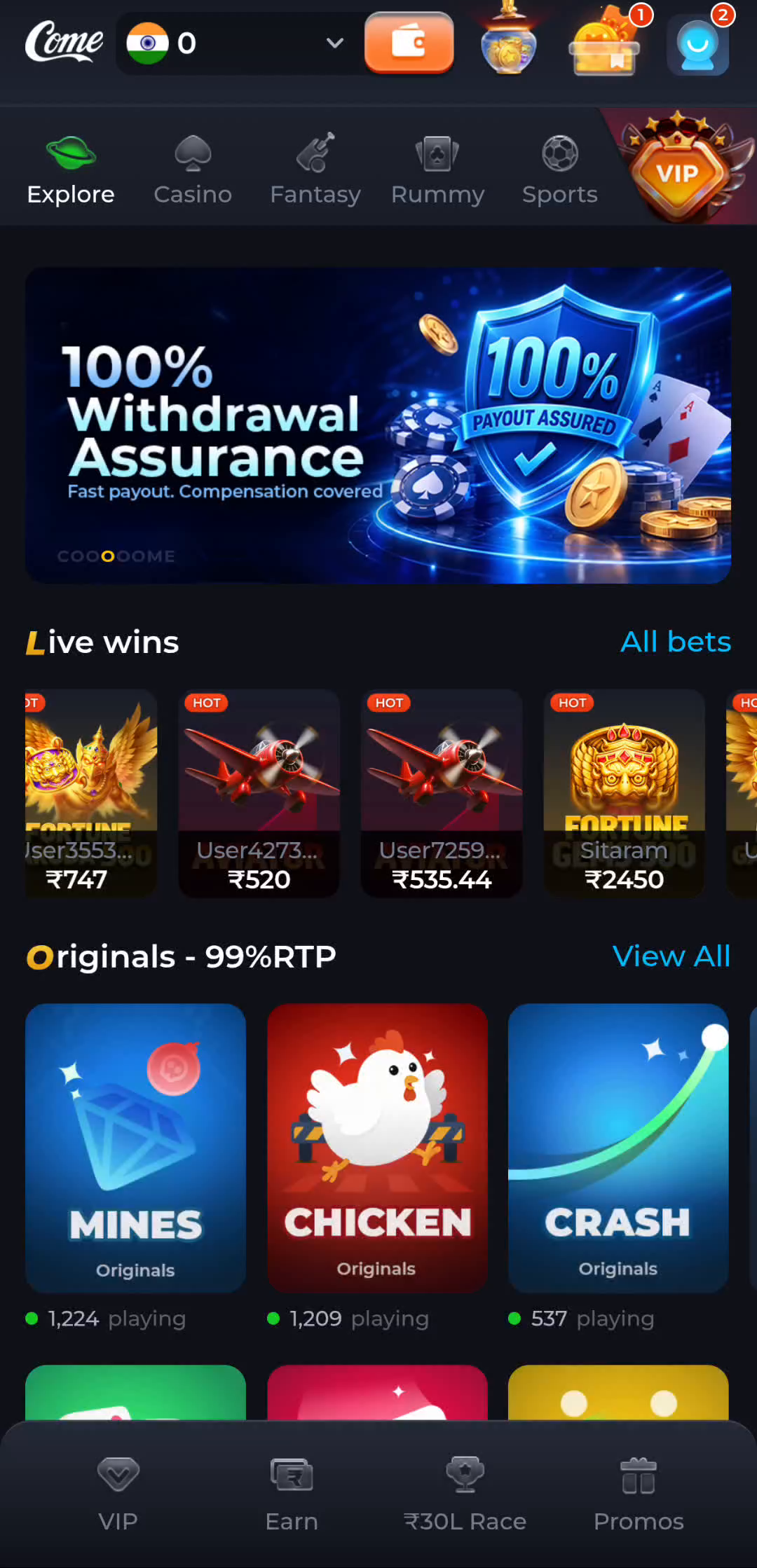
Explore, Casino, Fantasy, Rummy and Sports appear in the pictured row. Read the heading of the area you open and the current conditions shown there. Game tiles and activity counters are different from your personal account tools.
Find personal tools
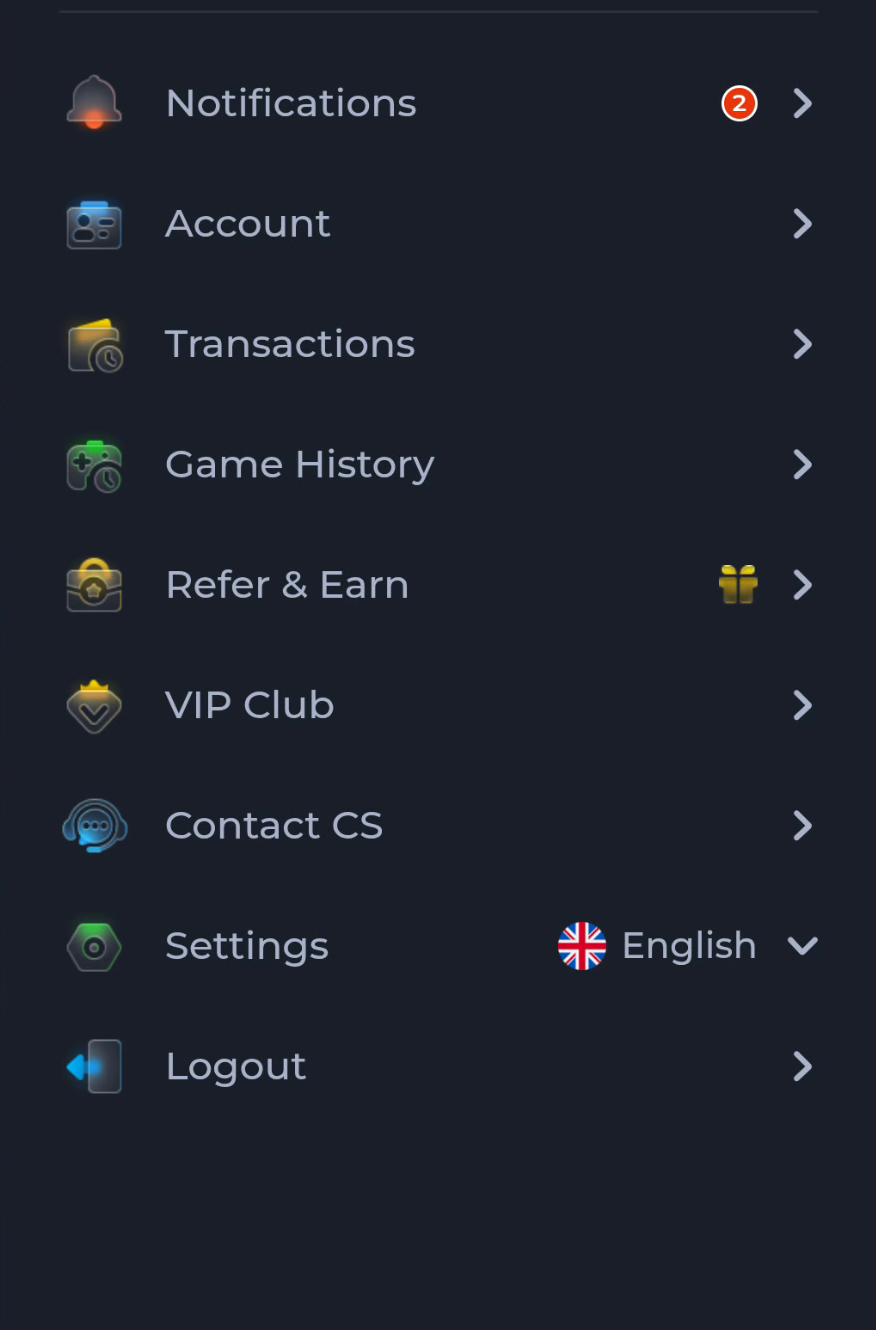
The account menu shown includes Account, Transactions, Game History, Contact CS, Settings and Logout. These labels can help you orient yourself. The exact options on your device may depend on the current interface and account.
Follow a task rather than every menu
- For a preference, start with Settings.
- For account access, read the relevant recovery or help information.
- For an installation question, return to the download guides.
- For a category, inspect its current rules before taking part.
Treat promotional elements as changing information
Balances, offers and counters visible in a screenshot belong to that pictured screen. Consult the actual service for present terms. Do not treat a graphic as a promise about payments, access or results.
Keep a route back to help
Before moving on, note where Contact CS or Customer Center appears in your current menu. This is more useful for a future question than saving a screenshot of a changing promotional banner.
Continue with the right guide
Choose another topic in Guides, or return to the main steps when you are ready.