 COME
COMERead COME APK File Details Without Mixing the Fields
Read each field for the question it answers. The app name identifies the listing, the version labels a release and the size label describes the download record.
Make a short file note
- App listing name: confirm the product you intended.
- Version label: compare with the installed release when available.
- Download size: use as a comparison point, not a safety certificate.
- Check date: record when you read the listing.
Do not confuse dates
A file manager’s date may describe a download or copy action. It is not automatically a release date. Similarly, a page revised today can still describe an older release. Compare the actual release information instead of deciding from the newest date alone.
Connect the listing to the installed app
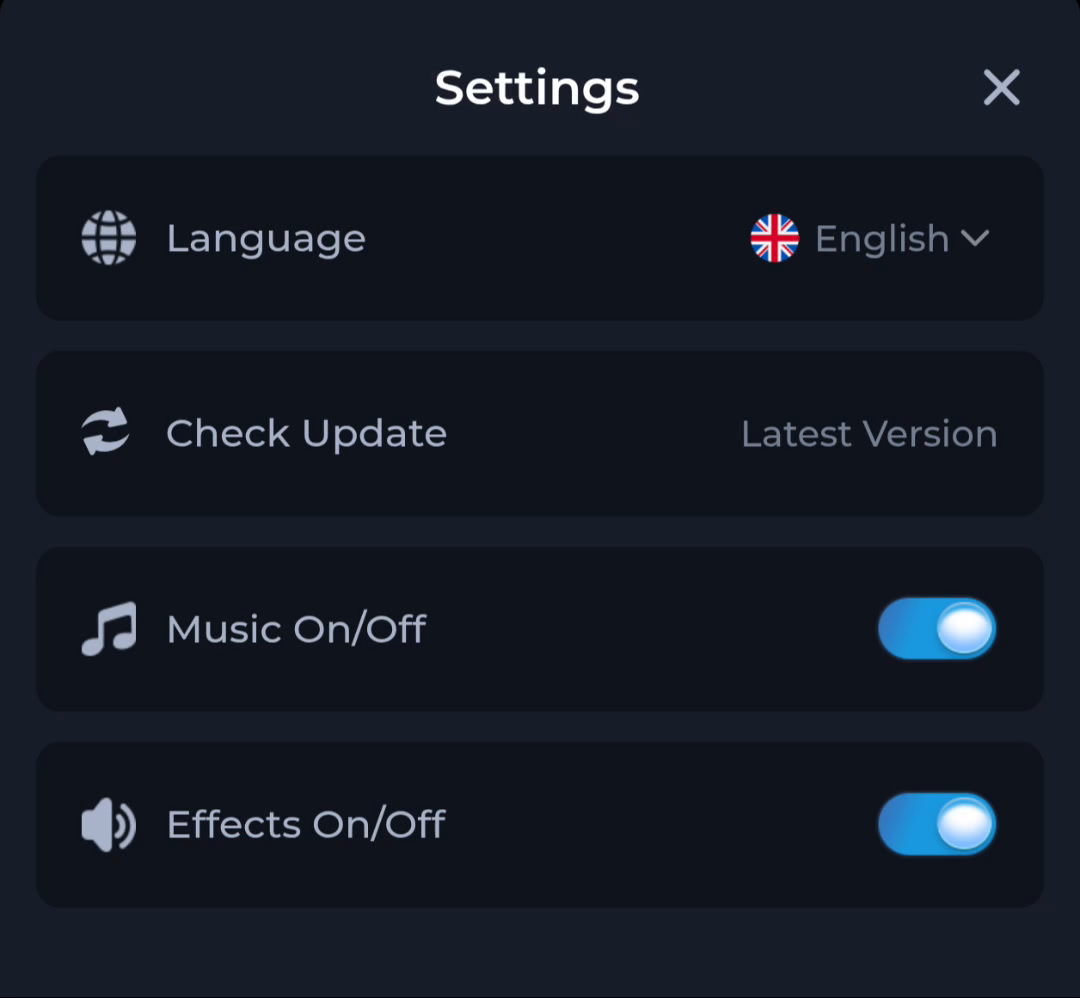
The COME Settings screenshot shows an update control. Use it to reach the current update information where available. The words Latest Version in an interface are not a substitute for a version number in your notes.
Check storage separately
Installed size can differ from the transfer size because installation and later app use add other data. Leave working space on the phone. Do not remove important files or an existing app simply because the listing appears small.
Resolve a mismatch before opening
If the source, app label or offered release changes unexpectedly, return to the intended page and clarify the difference. A matching name and size do not inspect a package’s contents or publisher identity.
Continue with the right guide
Choose another topic in Guides, or return to the main steps when you are ready.