 COME
COMEAn Interrupted COME Download: Resume from the Right Stage
First find out whether the browser transfer is incomplete, Android is rejecting a completed file, or the app has opened and cannot connect.
If the transfer is still incomplete
Read the status in the browser download list. Check the network connection and available storage. Use the browser’s normal resume option if it offers one, and wait for an explicit completed state before opening the item.
If a completed item will not install
Record Android’s exact message and review the source and app identity. A package problem is different from a paused transfer. Renaming a file or turning off protection does not resolve an unexplained identity or security warning.
If the app opens but cannot connect
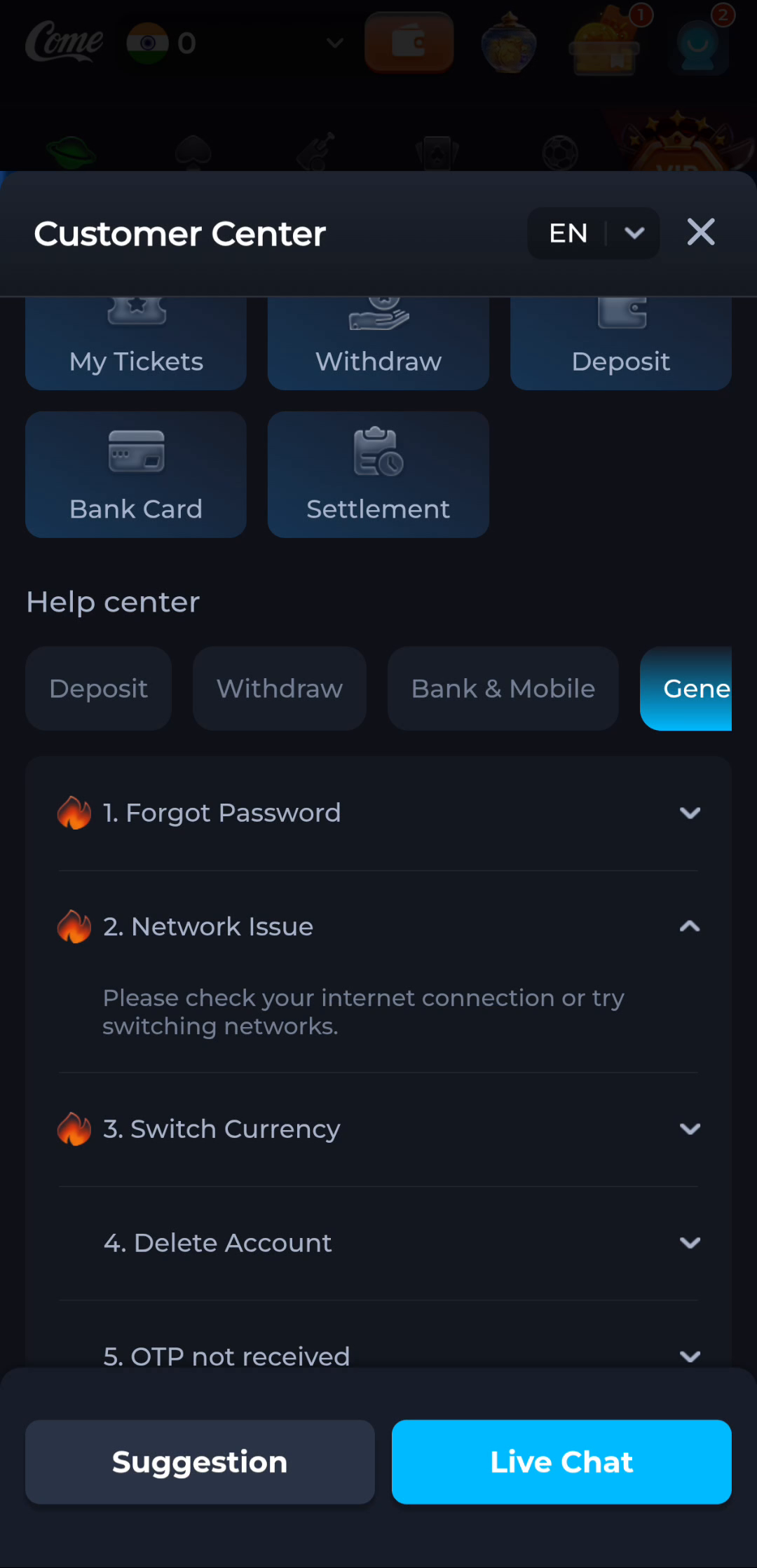
The pictured COME help topic concerns connectivity after reaching the service. Its advice to check the connection or try another network fits that stage. A service connection issue does not necessarily require downloading the APK again.
Keep a small attempt record
- Write down the stage and time.
- Note the connection used and the visible message.
- Make one relevant change.
- Record whether the same stage now succeeds.
Avoid a pile of indistinguishable copies
Before starting another transfer, check whether a complete file already exists. If you later review duplicates, preserve the one connected to your intended source and avoid opening unknown items. Keep account recovery separate from transfer troubleshooting.
Continue with the right guide
Choose another topic in Guides, or return to the main steps when you are ready.