 COME
COMECOME Update or New Phone Installation: Choose the Route
An update starts from an existing installation on the same phone. Setting up another phone starts with that device’s requirements and your account-access method.
If you are keeping the same phone
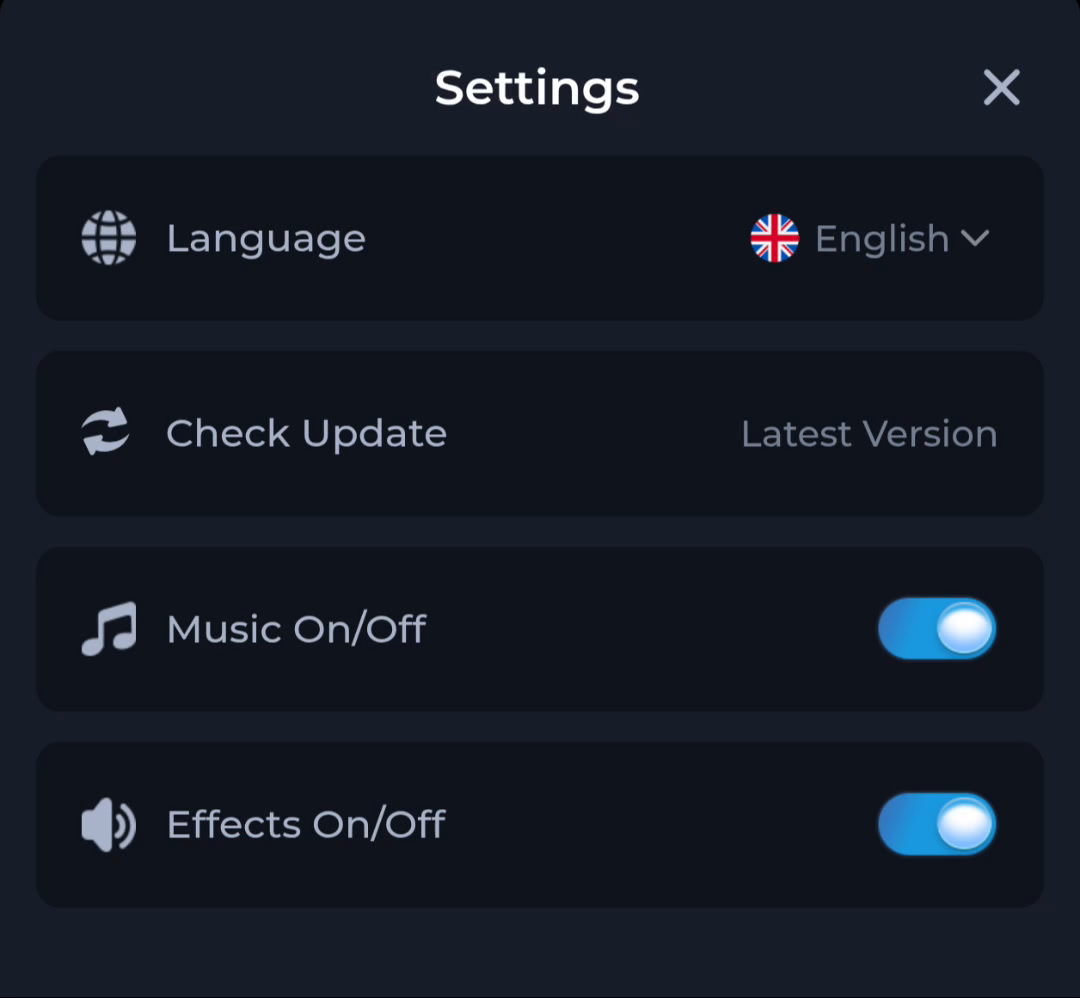
Check the installed version and the update information offered through the current route. Leave the existing app installed while comparing the release and reviewing any error.
If you are changing phones
- Confirm access to the sign-in method you normally use.
- Check the new Android phone and available storage.
- Open the intended source on that phone.
- Read the destination’s current device and account conditions before installing.
Do not assume local settings will follow
A new installation may require preferences to be set again. A file copied from the old phone is not automatically the right release for the new one. Use the destination’s current information and retain access to the old account method until the new setup is understood.
Keep recovery details private
Do not send someone a password or verification code to transfer an account. Use the actual service’s account-recovery process when needed. An installation guide cannot promise that all account data or settings will transfer.
Confirm each device separately
Check that the app opens on the intended phone, then check account access. Do not erase the old installation merely because the new phone completed a browser download.
Continue with the right guide
Choose another topic in Guides, or return to the main steps when you are ready.